Table of Contents
Audio System Configuration
The audio system is configured by default with the optimal settings for transmission and reception of Tones. If necessary, the audio system can be configured via the com.lisnr.radius.StreamBuilder class. Altering these settings may result in decreased performance of the LISNR Radius Android SDK.
Per recommendations of Google, the LISNR Radius Android SDK uses the Oboe API to control the audio system. Oboe uses AAudio for the audio system when available, except on Android 8.0 (Oreo), where OpenSLES will be used. Since the LISNR Radius Android SDK is using Oboe, com.lisnr.radius.StreamBuilder has the same limitations as the AudioStreamBuilder interface provided by Oboe.
The following example demonstrates a simple usage of com.lisnr.radius.StreamBuilder:
Transmission Volume Control
By default the Radius SDK broadcasts all tones, regardless of tone profile selected and the device's original volume level, at 100% volume on Android devices and 80% on iOS devices. A developer can change the transmission volume level with the com.lisnr.radius.Radius.setTransmissionVolume method. The SDK keeps the volume locked to the specified value (default 100%) during broadcasting of tones as reliability may be impacted with a broadcast volume less than 100%.
To reset the device volume to its original output level, call the com.lisnr.radius.Radius.unregisterAll method on the Radius object. This will also unregister all active Transmitters, Receivers, and stop active broadcasting or listening.
The chart below can be used as reference when choosing a value less than 100%.
| Volume Level | Standard 2.0 Effective Distance (Feet) | PKAB 2.0 Effective Distance (Feet) |
|---|---|---|
| 20% | 2.5 - 5 | <1 inch |
| 40% | 20-30 | 1.5 - 2 |
| 60% | 40 - 50 | 2 |
| 80% | 70 - 80 | 2 |
| 100% (Recommended) | 70 - 80 | 5 |
Audio Permissions
Starting with Android 6.0 Marshmallow (API Level 23), applications targeting this version and higher are now required to request certain permissions, such as microphone access, from users at runtime. Microphone permissions must be requested and granted from users prior to using Receiver or Transceiver functionality. It is recommended to follow Android Best Practices when requesting permissions in your application: https://developer.android.com/training/permissions/requesting
The Radius SDK requires microphone permissions to use Receiver or Transceiver functionality, therefore it is necessary that microphone permissions are granted by users to your app before you attempt to use any receiving or transceiving functionality. Microphone permissions are not required if your application is only transmitting.
To see an example Android application requesting runtime permissions, see the Create Button to Grant Microphone Permissions and Start Receiving section.
Audio Hardware
Speakers and microphones with a frequency response of 20kHz are required to successfully broadcast and receive Radius Tones. Most commodity speakers and mics, including the ones in mobile devices, are easily able to produce the signal. Depending on your environment and quality of hardware, there are models that might perform better than others for your use case.
To test an external speaker connected with an aux cord to a mobile app, you can utilize our Web SDK (Beta) sample app on a mobile device browser located at: http://websdksample.lisnr.com/. On this website, you can connect your mobile device to the external speaker and the audio should play through the external speaker properly. You can also generate mp3s using the Tone Creator in the LISNR Portal that can be played on a mobile device connected to a speaker. When a mobile device is connected to an external speaker the Radius Sample Application can't be used because it defaults the audio output to the mobile device speaker and not the external speaker.
Bluetooth Speakers
The LISNR team does not recommend broadcasting our tones through Bluetooth speakers as they can distort our signal. However, Radius Tones have been able to be demodulated from specific bluetooth speakers in the past and should be evaluated on a per bluetooth speaker basis.
Headphones
Currently on the Radius 2.0.0 Sample Application, the following behavior will occur when utilizing both wired and Bluetooth headphones: Transmitting with Radius SDK:
- By default the Radius SDK will force the tone transmission to occur on the mobile device speaker, not the headphones. As a result, headphone audio may be interrupted.
Receiving with Radius SDK:
- By default the Radius SDK will force the tone detection to occur on the mobile device microphone, not the headphones. As a result, headphone audio may be interrupted.
Updates to Android OS and iOS may affect this behavior. OS version specific testing is recommended.
Audio Analyzer Tool
LISNR Radius Tones are inaudible/silent for most individuals. In order to visualize and ensure that an ultrasonic tone is successfully broadcasting, you can download the Spectroid audio analyzer mobile application to see a visual image of tones being played in real time. You must run the Spectroid application on a separate device from the broadcasting device.
Spectroid Settings to Modify:
- Audio Settings
- Audio source - Default
- Sampling rate - Auto (48000 Hz)
- FTT size 512 bins (94 Hz/bin)
- Decimations - 5 (2.9 Hz/bin @ DC)
- Window function - Blackman-Harris
- Desired transform interval - 20 ms (50 Hz)
- Exponential smoothing factor - 0.30
- Display Settings
- Frequency axis scale - Linear
- Waterfall - 2/3 screen
- Max-hold trace - toggle on
- Peak markers- 1 marker
- Stay Awake - checked
Below is screenshot from the Spectroid application when a Radius Tone is beaconing (transmitting repeatedly):
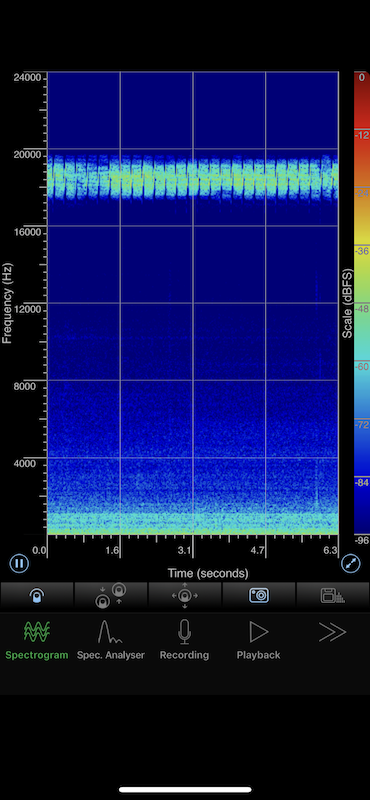
Additional Sound While Using The SDK
If you would like to add additional audible sound (ex. chime) to your mobile application, the audible sound should not interfere with Radius Tones since their frequencies fall between 17kHz-20kHz range. You can find out the frequency of your audible sound by using the Spectroid app referenced in the Audio Analyzer Tool section above. If you are unsure if the audible sound falls within the Radius Tone frequency range, it is recommended to play the audible sound either before or after the ultrasonic audio transmission has taken place. This is to avoid any collisions within the audio frequency spectrum.